Mark a gift as purchased: guest details and quantities
Updated
Choose Mark as purchased on the gift to tell other shoppers you bought it. GiftList also calls this reserving or claiming a gift. In this flow, those words refer to the same list update; they do not place an order with a store.
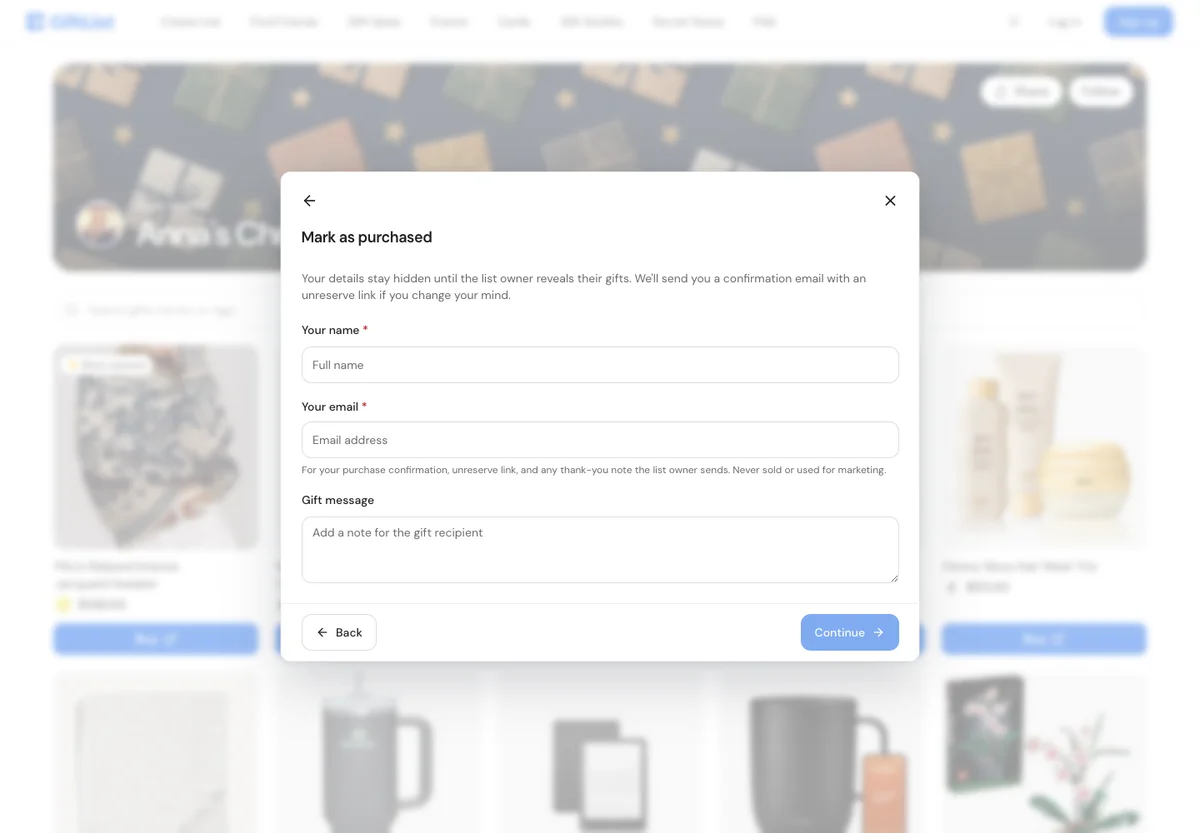
Complete the purchase form
- Open the gift on the shared list and choose Mark as purchased.
- Fill in Your name and Your email. No GiftList account is required. If you are signed in, check any prefilled details.
- Add a Gift message if you want. When How many did you buy? appears, enter the quantity you actually bought, up to the amount still needed.
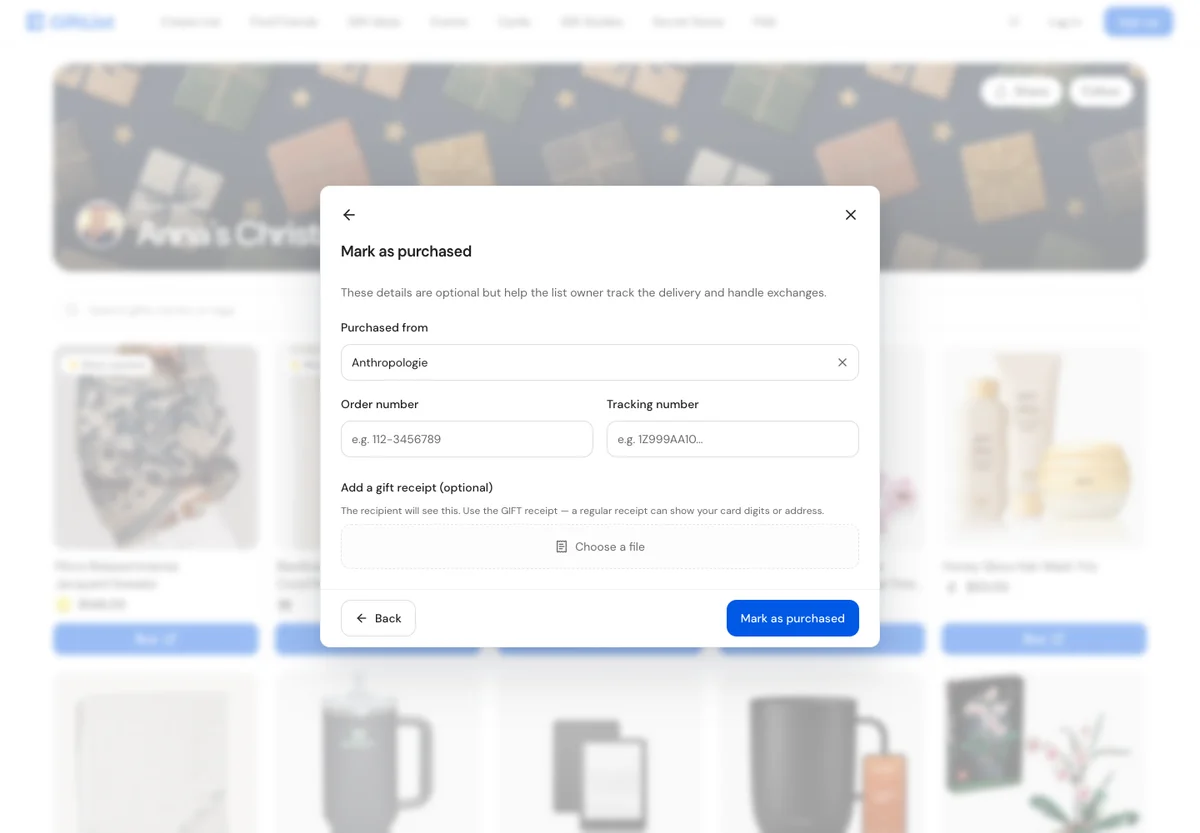
- Choose Continue. The next screen's Purchased from, Order number, Tracking number and gift receipt are optional. Enter an order number rather than pasting a long order-page link into that field.
- Choose Mark as purchased on that screen. Wait for confirmation before closing it.
With a valid email address, GiftList sends a confirmation containing an unreserve link. The email confirms your GiftList record; the retailer's order confirmation confirms your purchase.
Do I have to give an email address?
The current standard form requires something in both name and email fields. If the email does not look valid, it displays a warning and a Continue without email confirmation checkbox. That path does not send a confirmation email. After a successful submission, save the recovery link displayed before choosing Done.
Using a working email is the easiest way to keep an undo link. Do not assume you can leave the email field blank, recover a guest purchase on every device, or receive a thank-you email without a working address.
Quantities and errors
A gift can need more than one unit. Recording one unit does not necessarily make the whole item unavailable. If the remaining quantity changes while your form is open, close it, refresh the list and check again.
If the connection drops, first check the gift's current status and your confirmation email. The record may have saved even if confirmation did not reach your screen. Avoid creating another claim until you have checked. If GiftList says it is fully claimed, refresh and choose another gift or contact support about your own record.
These form steps are shared by the web and supported mobile app versions. If an older app shows different fields, use the shared link in a browser.
Related: Buying from a list, undoing a reservation, keeping surprises. Contact GiftList if your record is still unclear.
Still have questions?
Ask our AI help assistant a follow-up, or email the GiftList team.